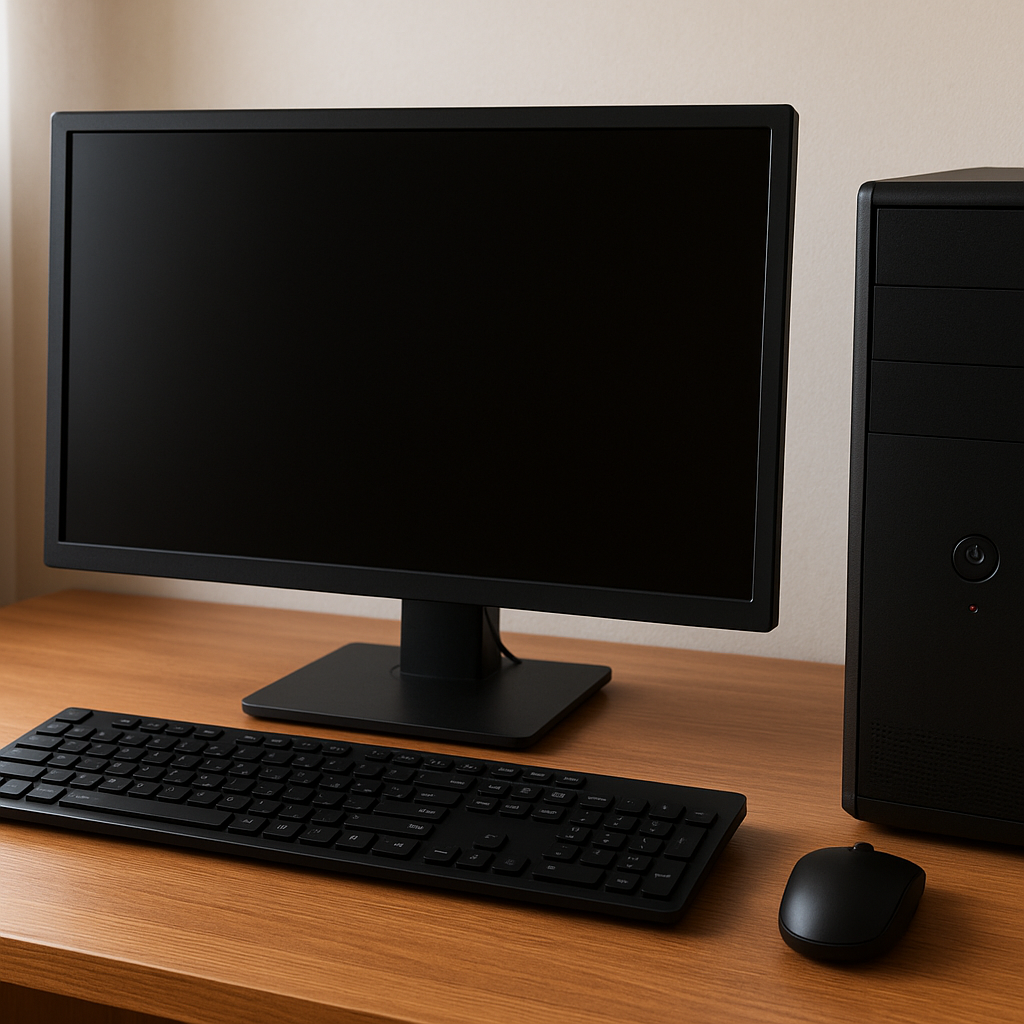
If your computer turns on but the screen stays black, possible causes include a monitor connection problem, incorrect display settings, graphics issues, faulty RAM, or another hardware malfunction. Power lights and spinning fans do not necessarily mean the computer has started successfully. The problem can affect both desktop PCs and laptops. To identify the cause, determine whether the screen remains black immediately after pressing the power button or becomes blank during Windows startup. This distinction helps separate hardware problems from operating system issues.
Why Does My Computer Turn On but Show No Display?
A computer must complete several startup checks before displaying an image and loading Windows. Receiving electrical power does not guarantee that these checks have succeeded.
Possible causes include a disconnected monitor, incorrect video input, graphics hardware problems, memory errors, or a failed startup process.
If the manufacturer’s logo or BIOS/UEFI screen appears before the display turns black, the problem may involve Windows or its graphics drivers.
If nothing appears from the beginning, the issue may involve the display connection, hardware initialization, or internal components.
As explained in Dell’s computer startup troubleshooting guide, No Power, No POST, No Boot, and No Video describe different problems that require different diagnostic approaches.
How to Fix a Computer That Turns On but Has No Display
Start with simple checks that don’t require opening the computer or changing internal components.
1. Check the Monitor and Display Connections
For a desktop PC:
- Confirm that the monitor is switched on and receiving power.
- Check that the HDMI, DisplayPort, or other video cable is securely connected.
- Select the correct input source using the monitor’s controls.
- Try another compatible cable or monitor.
- If your computer has a dedicated graphics card, verify that the monitor is connected to its video output rather than an unsupported motherboard output.
For laptops, increase screen brightness and check whether the system is displaying an image only on an external monitor.
2. Restart the Computer and Disconnect External Devices
If the computer responds, use its normal restart procedure.
When the system is completely unresponsive, a forced shutdown may be necessary. Hold the power button until the computer turns off, then restart it.
Disconnect unnecessary USB devices, external drives, docking stations, and other peripherals before testing again.
Some manufacturers also recommend a model-specific power reset to clear certain startup problems.
Avoid repeated forced shutdowns, especially if the computer may be installing Windows updates or updating its BIOS/UEFI firmware.
3. Try the Windows Black Screen Shortcut
If Windows is running but the display remains blank, press:
Windows + Ctrl + Shift + B
This keyboard shortcut can reset the graphics driver and sometimes restore the display.
You may hear a brief beep or see the screen flicker when the command works.
Microsoft recommends this shortcut in its official Windows black screen troubleshooting guide.
However, this method only helps with certain software-related display problems. It cannot repair faulty RAM, a damaged screen, or a defective graphics card.
4. Test an External Monitor
For a laptop with a black screen, connect a compatible external monitor or television using HDMI, USB-C video output, or another supported connection.
If the external display works, the issue may involve the laptop’s built-in screen, internal display cable, or display settings.
If neither screen shows an image, the problem may be related to startup, graphics hardware, or another component.
However, a blank external monitor does not automatically prove that the graphics card has failed.
5. Check for Hardware Problems
If basic troubleshooting doesn’t help, possible hardware causes include:
- Faulty or improperly connected RAM.
- A malfunctioning graphics card.
- Motherboard or power-related problems.
- BIOS/UEFI initialization errors.
- A defective laptop display.
Some computers provide diagnostic LED patterns or beep codes during startup. Consult the manufacturer’s documentation to interpret these signals, as their meanings vary by model.
Avoid disassembling a laptop, removing memory modules, or resetting firmware settings without the necessary skills and manufacturer instructions.
Laptop Turns On but the Screen Is Black
Laptops can show several different symptoms:
- Power light on, screen completely black: The issue may involve the display or the computer’s startup process.
- Keyboard lights on, no image: The laptop receives power, but successful startup is not confirmed.
- External monitor works: The internal display or its connection may be responsible.
- Screen turns black after the logo: Windows, display drivers, or startup settings may be involved.
Manufacturers such as Dell and HP offer built-in diagnostics for certain models. For example, HP’s blank screen troubleshooting instructions explain how to distinguish display problems from startup failures.
Always use diagnostic procedures intended for your specific laptop model.
What If the PC Shows a Black Screen After Booting?
If the manufacturer’s logo appears normally but the screen turns black while Windows loads, the cause may be software-related.
Common possibilities include a graphics driver failure, incorrect display output selection, a problematic Windows update, or a startup error.
First, try Windows + Ctrl + Shift + B and check whether the computer is sending its display output to another screen.
If Windows Recovery is accessible, use Microsoft’s official recovery tools to investigate startup problems.
When the issue begins immediately after a graphics driver update, rolling back the driver may help if Windows provides that option.
Reinstalling Windows or formatting the storage drive should not be the first troubleshooting step.
When Should You Seek Professional Repair?
Professional diagnosis may be necessary if:
- No image appears on any tested display.
- The computer repeatedly fails its initial startup checks.
- Diagnostic lights or beep codes indicate hardware errors.
- The laptop has suffered physical damage or liquid exposure.
- The computer overheats or shuts down unexpectedly.
- Basic troubleshooting and manufacturer diagnostics don’t resolve the issue.
If the device is under warranty, contact the manufacturer or an authorized repair center before attempting internal repairs.
Ultimately, a computer that turns on without displaying an image does not necessarily have a failed graphics card. Checking monitor connections, display settings, external devices, and startup behavior can help identify the problem. If these steps fail, professional hardware diagnostics may be required.